Scroll below to find the full step-by-step process.
Introduction
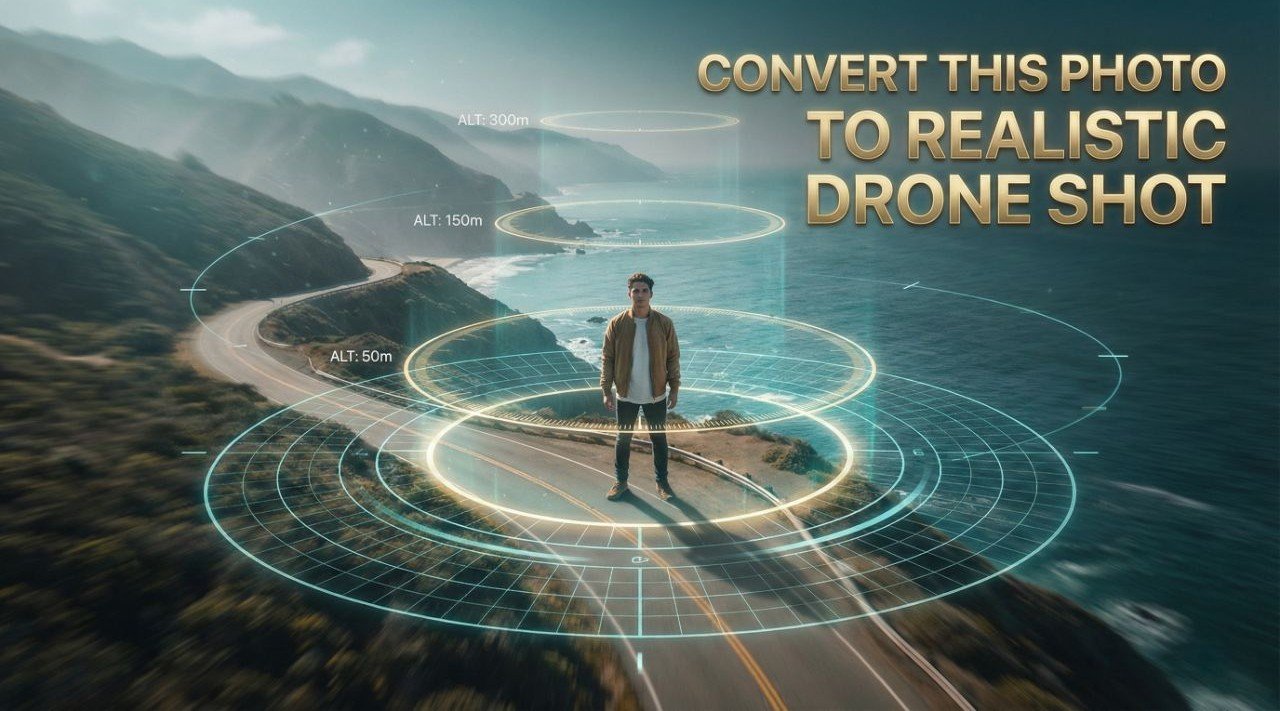
This article explains how to convert any photo into a realistic drone-shot style video using Google Flow. The method uses the Frames-to-Video feature, where you upload your reference image and give the prompt “Convert this photo to realistic drone shot”. The process is simple and suitable for beginners who want drone-style camera movement without using real drones.
Step 1: Open Google Flow
Open Google Flow and log in with your Google account. Start a new project or open an existing one. Flow is designed for video creation and image-to-video conversion.
Step 2: Select Frames to Video Mode
Inside the prompt area, choose the option called Frames to Video. This feature converts one or more still frames into a short video. For this project, using a single frame works perfectly.
Step 3: Upload Your Reference Photo
Click the upload button and add the photo you want to transform. You can upload only one photo, or you can upload the same image twice if the tool asks for a start and end frame. A clear subject image gives better results.
Step 4: Choose a Camera Movement
Google Flow includes camera movement controls. Select a drone-style movement such as fly upward, pull back, aerial sweep, or cinematic rise. This makes the final video feel like it was recorded from a drone.
Step 5: Enter the Video Prompt
In the text box, paste this exact prompt:
“Convert this photo to realistic drone shot”
You may add a little description afterward if you want, like smooth drone motion or natural surroundings, but the main line should stay exactly the same.
Step 6: Set Video Duration and Generate
Choose the video duration (usually 5 to 8 seconds) and click Generate. Google Flow will process the frame and create a realistic drone-style shot based on your image and prompt.
Step 7: Review the Result
Once the video is ready, play it to check the movement, lighting, and style. If something looks off, adjust the camera movement option or rewrite the supporting text slightly, then regenerate the video.
Step 8: Download and Use the Video
After getting the desired result, download the final video. You can use it for reels, YouTube, presentations, or any creative project requiring a realistic drone effect.
Conclusion
Using Google Flow and the prompt “Convert this photo to realistic drone shot”, anyone can create high-quality drone-style videos from a single photo. The process is simple, fast, and does not require advanced editing skills.